Product
Text to 3D with BlueFox
Describe an asset, approve a picture of it, and BlueFox, Hydrilla's 3D model, builds it as a segmented 3D model in Hydrilla AI. About BlueFox
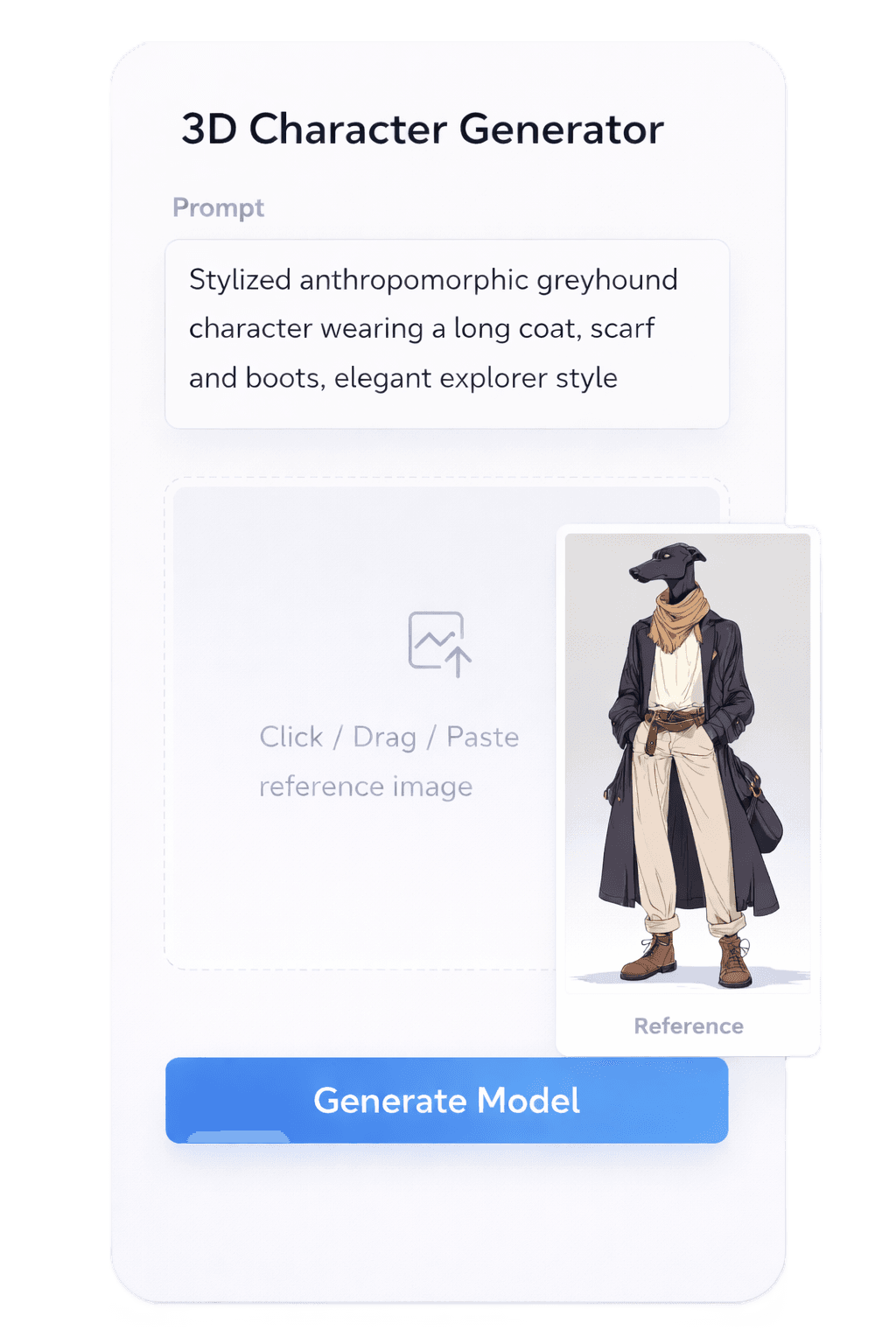
1Prompt
2Reference image
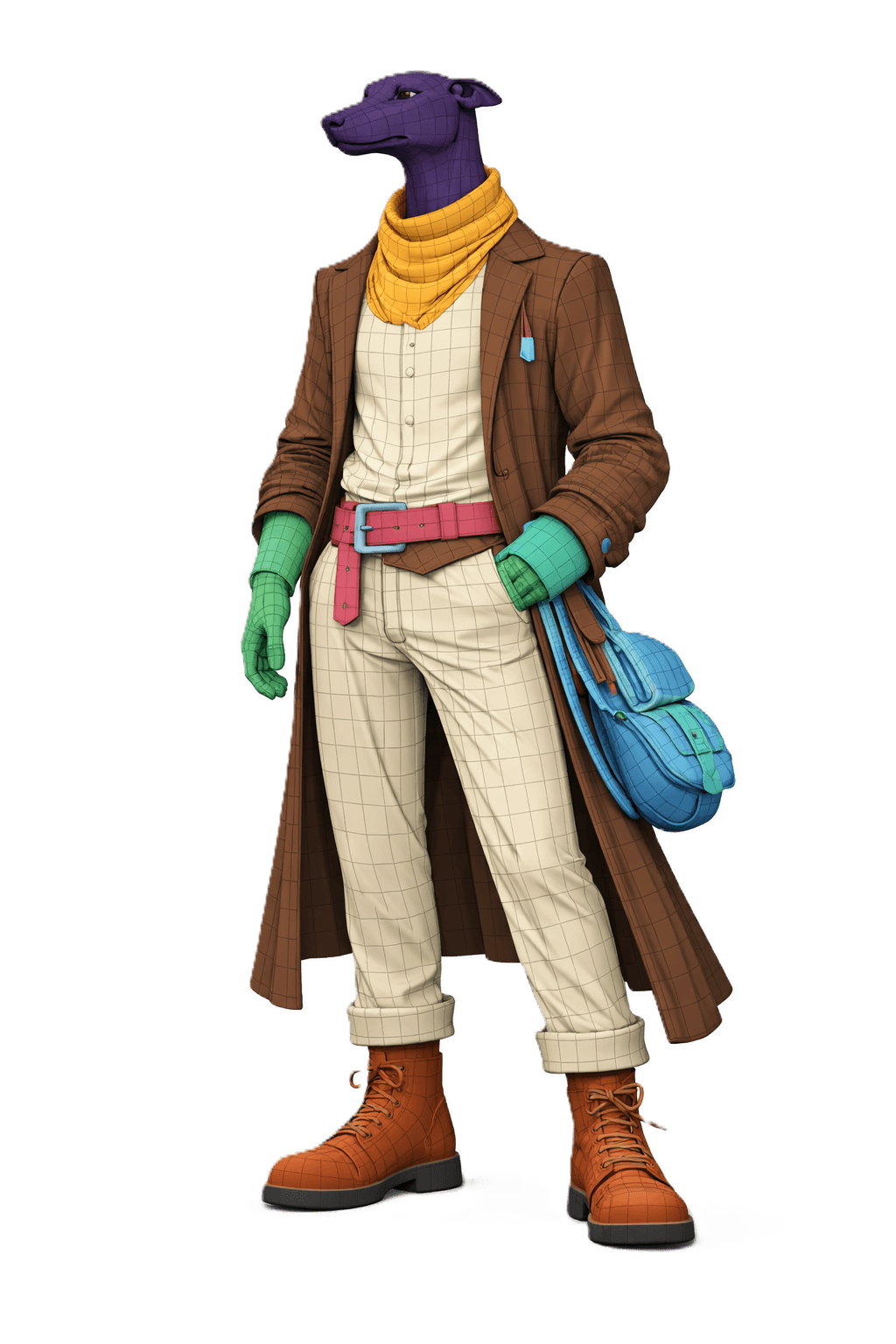
33D model
Text to 3D is the right start when the idea exists only as words: a prop list from a level designer, a line in a script, or a note from an art director. You write what the asset is and how it will be used, and Hydrilla turns that description into a model you can preview and take further.
Four steps from prompt to model
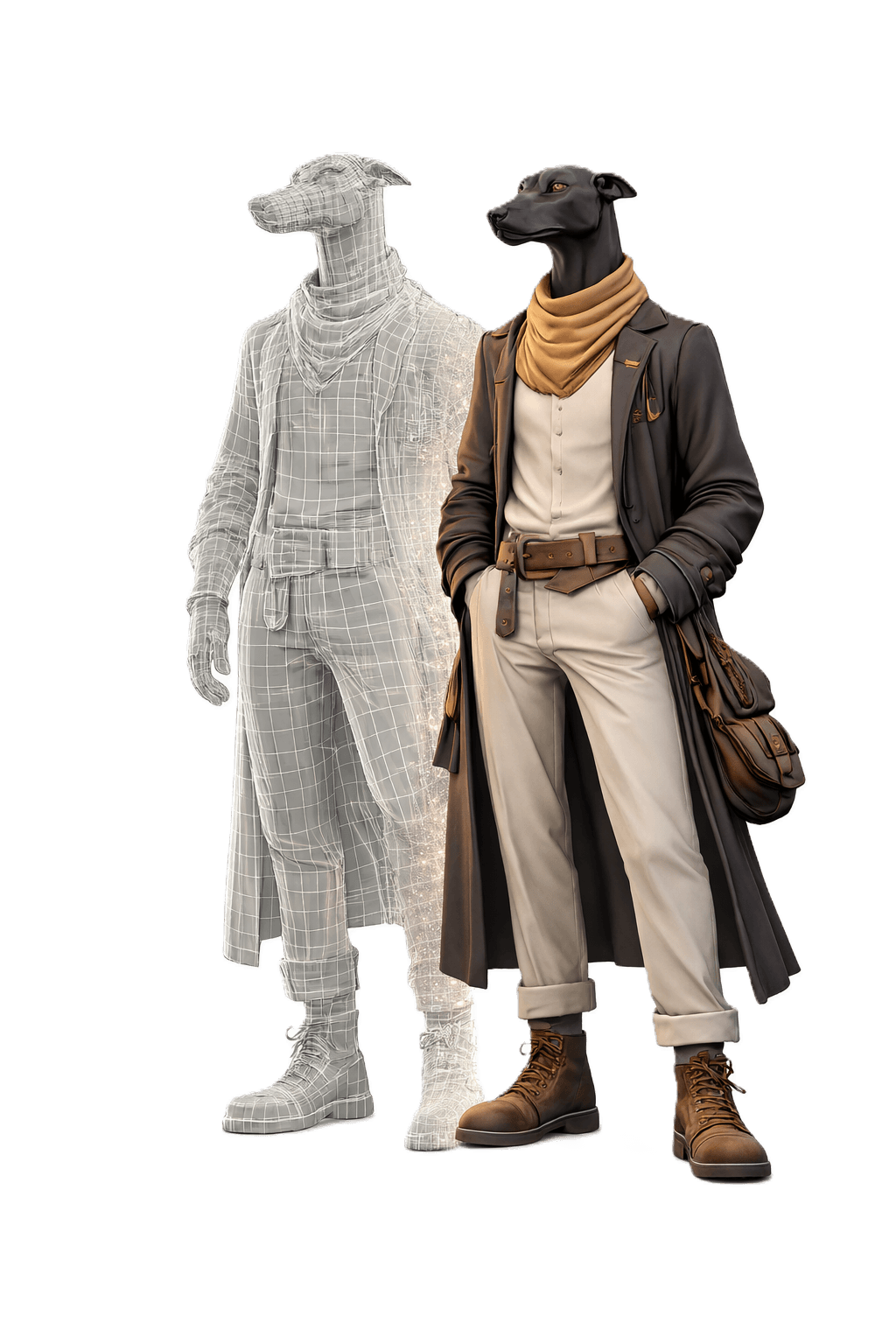
Text to 3D starts with a reference image that you can refine before the 3D model is generated. That picture is your chance to agree on the look before any geometry exists.
- Write a prompt naming the subject, its style, and its use.
- An image model renders a reference, at Low or High quality, in a square, landscape, or portrait frame.
- Adjust the image with an Edit prompt until it looks right.
- Generate the 3D model, then preview it and export.
Every model comes back UV-unwrapped, with PBR maps, so it is ready for material work from the start. What BlueFox returns
Write prompts that say how the asset will be used
Be specific about scale and use. A prompt that names the use, the scale, and how close the camera will get gives BlueFox a clearer brief than a list of adjectives. The examples below show the difference that one extra detail makes.
| Prompt | Why it works |
|---|---|
| Low-poly wooden crate for a Unity mobile game | Names the style and engine |
| Weathered brass ship lantern with worn edges | Sets the material and detail level |
| Walnut lounge chair at real scale, for interior renders | Gives scale and use |
| Cargo container for a background set | Says it sits far from camera |
Refine the image before you spend on 3D
Settle the look at the image stage, where a change is one more Edit prompt. Adjust color, proportion, or wear on the picture until it reads the way you want, then generate the model once. It keeps review short and credits focused on the version you actually approve.
When another start fits better
If you already have a photo or concept image, start from it with image to 3D. If the job is a whole set of pieces rather than one model, brief Water Agent instead. See what a model costs