Product
Image to 3D: turn a picture into a 3D model
Upload a picture, and BlueFox, Hydrilla's 3D model, builds a segmented 3D model from it in Hydrilla AI, ready to preview and export.

BeforeYour picture
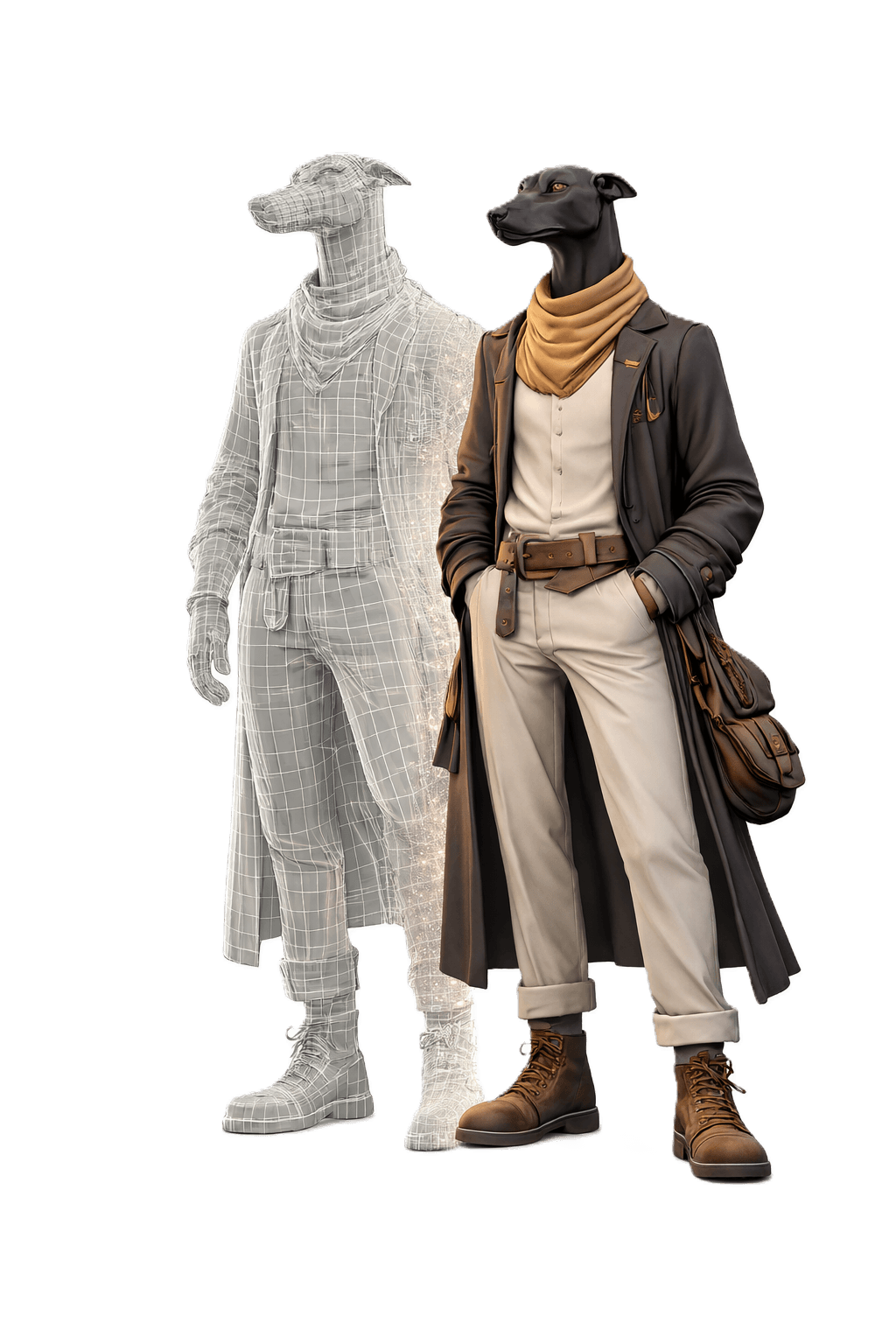
AfterSegmented 3D model
Image to 3D is for the moments when the look is already decided. A product shot, a reference photo from a location scout, or an approved concept frame carries more visual information than any description, and BlueFox uses it as the brief.
From picture to model in three steps
The workflow is short on purpose. There is no image stage to approve, because your picture is the approved look.
- Upload a picture of the object you want.
- Start the job, and the picture becomes a model split into parts. Credits per job
- Spin it in the preview, check each part, then export.
What BlueFox reads from your image
Image to 3D uses your reference to follow its silhouette, materials, and style. It works from what the camera captured, so sides the photo doesn't show are inferred. Shoot from the side that carries the detail you need, and the model will follow it most closely.
Better pictures make better models
The quality of the reference sets the ceiling for the model. One clear subject, in even light, against a plain background, gives BlueFox the least to guess. The guide below walks through framing, light, and a short checklist. How to shoot a good reference
Starting without a picture
No picture yet? Describe the asset with text to 3D, which creates a reference for you to refine first. Every result arrives with parts, UVs, and PBR maps, detailed on the model page.